
Skip to content
Free Excel Tutorials
  • Home
  • Excel For Beginners
  • Excel Intermediate
  • Advanced Excel For Experts

Data Analysis

  • Randomize/ Shuffle List in Excel
  • How To Create Frequency Distribution in Excel
  • Use Data Form to input, edit and delete records in Excel
  • How to Use Solver Tool in Excel
  • How to add Trendline to a chart in Excel

References

  • How to use Excel COLUMN Function
  • Two-column Lookup in Excel
  • How to get last row in numeric data in Excel
  • Two-way lookup with VLOOKUP in Excel
  • How to use Excel MMULT Function

Data Validations

  • Excel Data validation date in next 30 days
  • Excel Data validation require unique number
  • How To Create Drop-down List in Excel
  • Excel Data validation date in specific year
  • Excel Data validation whole percentage only

VLOOKUP by date in Excel

by

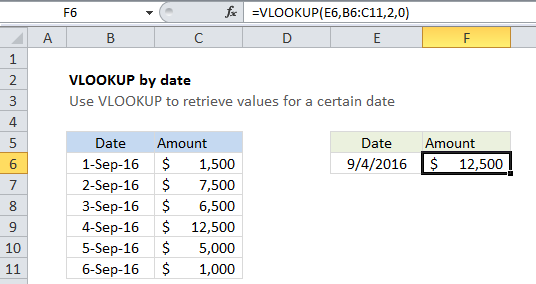
This tutorial shows how to calculate VLOOKUP by date in Excel using the example below;

Formula

=VLOOKUP(date,table,col,FALSE)
Explanation

To retrieve a value on a specific date from a table, you can use the VLOOKUP function.

In the example shown, the formula in F6 is:

=VLOOKUP(E6,B6:C11,2,0)

How this formula works

This is a standard VLOOKUP formula. It requires a table with lookup values (in this case, dates) to the left of the values being retrieved.

The lookup value comes from cell E6, which must be a valid date. The table array is the range B6:C11, and the column index is 2, since the amounts are in the second column of the table. Finally, zero is provided for the final argument to force an exact match.

The VLOOKUP function locates the date value for Sept 4, and returns the value at the same row in the second column: 12,500.

Note: the lookup value and the date values in the table must be valid Excel dates.

Post navigation

Previous Post:

COSH function: Description, Usage, Syntax, Examples and Explanation

Next Post:

Excel Data validation require unique number

Leave a Reply Cancel reply

Your email address will not be published. Required fields are marked *

Learn Basic Excel

Ribbon
Workbook
Worksheets
Format Cells
Find & Select
Sort & Filter
Templates
Print
Share
Protect
Keyboard Shortcuts

Categories

  • Charts
  • Data Analysis
  • Data Validation
  • Excel Functions
    • Cube Functions
    • Database Functions
    • Date and Time Functions
    • Engineering Functions
    • Financial Functions
    • Information Functions
    • Logical Functions
    • Lookup and Reference Functions
    • Math and Trig Functions
    • Statistical Functions
    • Text Functions
    • Web Functions
  • Excel VBA
  • Excel Video Tutorials
  • Formatting
  • Grouping
  • Others

Logical Functions

  • How to use Excel TRUE Function
  • Extract multiple matches into separate rows in Excel
  • SWITCH function: Description, Usage, Syntax, Examples and Explanation
  • Return blank if in Excel
  • TRUE function: Description, Usage, Syntax, Examples and Explanation

Date Time

  • Calculate date overlap in days in Excel
  • Get days, hours, and minutes between dates in Excel
  • How to calculate working days left in month in Excel
  • Custom weekday abbreviation in Excel
  • Display Date is workday in Excel

Grouping

  • Group numbers at uneven intervals in Excel
  • Group numbers with VLOOKUP in Excel
  • Categorize text with keywords in Excel
  • How to randomly assign people to groups in Excel
  • Group arbitrary text values in Excel

General

  • Index and match on multiple columns in Excel
  • Basic numeric sort formula in Excel
  • How to calculate percentage of total in Excel
  • How to get random value from list or table in Excel
  • 3D SUMIF for multiple worksheets in Excel
© 2025 xlsoffice . All Right Reserved. | Teal Smiles | Abbreviations And Their Meaning