
Skip to content
Free Excel Tutorials
  • Home
  • Excel For Beginners
  • Excel Intermediate
  • Advanced Excel For Experts

Data Analysis

  • Get column name from index in Excel Table
  • How to Create Gantt Chart in Excel
  • Working With Tables in Excel
  • How to create running total in an Excel Table
  • Data Series in Excel

References

  • Complete List of Excel Lookup and Reference Functions, References and Examples
  • Offset in Excel
  • How to get address of last cell in range in Excel
  • Last row number in range
  • Perform case-sensitive Lookup in Excel

Data Validations

  • Excel Data validation date in next 30 days
  • Excel Data validation date in specific year
  • Excel Data validation only dates between
  • Excel Data validation specific characters only
  • Excel Data validation must begin with

How to generate random number weighted probability in Excel

by

To generated a random number, weighted with a given probability, you can use a helper table together with a formula based on the RAND and MATCH functions.

Formula

=MATCH(RAND(),cumulative_probability)
Explanation

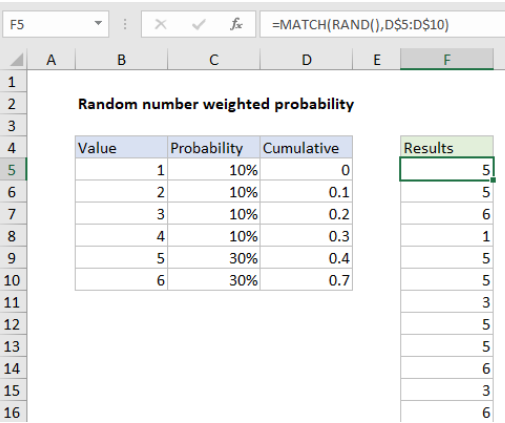
In the example shown, the formula in F5 is:

=MATCH(RAND(),D$5:D$10)

How this formula works

This formula relies on the helper table visible in the range B4:D10. Column B contains the six numbers we want as a final result. Column C contains the probability weight assigned to each number, entered as a percentage. Column D contains the cumulative probability, created with this formula in D5, copied down:

=SUM(D4,C4)

Notice, we are intentionally shifting the cumulative probability down one row, so that the value in D5 is zero. This is to make sure MATCH is able to find a position for all values down to zero as explained below.

To generate a random value, using the weighted probability in the helper table, F5 contains this formula, copied down:

=MATCH(RAND(),D$5:D$10)

Inside MATCH, the lookup value is provided by the RAND function. RAND generates a random value between zero and 1. The lookup array is the range D5:D10, locked so it won’t change as the formula is copied down the column.

The third argument for MATCH, match type, is omitted. When match type is omitted, MATCH will return the position of the largest value less than or equal to the lookup value*. In practical terms, this means the MATCH function travels along the values in D5:D10 until a larger value is encountered, then “steps back” to the previous position. When MATCH encounters a value larger than the largest last value in D5:D10 (.7 in the example), it returns the last position (6 in the example). As mentioned above, the first value in D5:D10 is deliberately zero to ensure that values below .1 are “caught” by the lookup table and return a position of 1.

*Values in the lookup range must be sorted in ascending order.

Random weighted text value

To return a random weighted text value (i.e. a non-numeric value), you can enter text values in the range B5:B10, then add INDEX to return a value in that range, based on the position returned by MATCH:

=INDEX($B$5:$B$10,MATCH(RAND(),D$5:D$10))

Post navigation

Previous Post:

DECIMAL function: Description, Usage, Syntax, Examples and Explanation

Next Post:

AVERAGE function: Description, Usage, Syntax, Examples and Explanation

Leave a Reply Cancel reply

Your email address will not be published. Required fields are marked *

Learn Basic Excel

Ribbon
Workbook
Worksheets
Format Cells
Find & Select
Sort & Filter
Templates
Print
Share
Protect
Keyboard Shortcuts

Categories

  • Charts
  • Data Analysis
  • Data Validation
  • Excel Functions
    • Cube Functions
    • Database Functions
    • Date and Time Functions
    • Engineering Functions
    • Financial Functions
    • Information Functions
    • Logical Functions
    • Lookup and Reference Functions
    • Math and Trig Functions
    • Statistical Functions
    • Text Functions
    • Web Functions
  • Excel VBA
  • Excel Video Tutorials
  • Formatting
  • Grouping
  • Others

Logical Functions

  • How to use Excel XOR Function
  • NOT function: Description, Usage, Syntax, Examples and Explanation
  • TRUE function: Description, Usage, Syntax, Examples and Explanation
  • AND function: Description, Usage, Syntax, Examples and Explanation
  • Nested IF function example in Excel

Date Time

  • How to calculate next day of week in Excel
  • How to get year from date in Excel
  • YEAR function: Description, Usage, Syntax, Examples and Explanation
  • WEEKNUM function: Description, Usage, Syntax, Examples and Explanation
  • HOUR function: Description, Usage, Syntax, Examples and Explanation

Grouping

  • Group times into 3 hour buckets in Excel
  • Group numbers at uneven intervals in Excel
  • Group numbers with VLOOKUP in Excel
  • Categorize text with keywords in Excel
  • If cell contains one of many things in Excel

General

  • How to Insert Cells, Row and Rows in Excel
  • How to count total columns in range in Excel
  • List sheet names with formula in Excel
  • Convert column number to letter in Excel
  • How to calculate project complete percentage in Excel
© 2025 xlsoffice . All Right Reserved. | Teal Smiles | Abbreviations And Their Meaning