
Skip to content
Free Excel Tutorials
  • Home
  • Excel For Beginners
  • Excel Intermediate
  • Advanced Excel For Experts

Data Analysis

  • Subtotal function in Excel
  • How To Insert and Customize Sparklines in Excel
  • Add Outline to Data in Excel
  • How to do a t-Test in Excel?
  • Remove Duplicates Example in Excel

References

  • Find Closest Match in Excel Using INDEX, MATCH, ABS and MIN functions
  • Two-column Lookup in Excel
  • VLOOKUP function: Description, Usage, Syntax, Examples and Explanation
  • How to get first column number in range in Excel
  • How to get last row in text data in Excel

Data Validations

  • Excel Data validation must not contain
  • Excel Data validation require unique number
  • Excel Data validation date in next 30 days
  • How To Create Drop-down List in Excel
  • Excel Data validation must begin with

Conditional formatting dates overlap in Excel

by

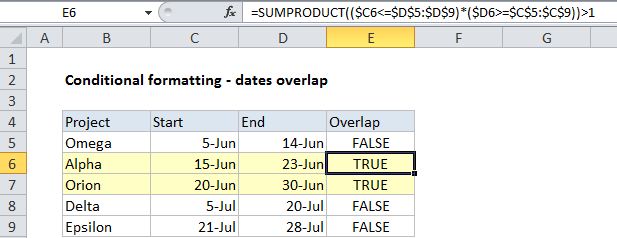
This tutorial shows how to work Conditional formatting dates overlap in Excel using the example below;

Formula

=SUMPRODUCT((start_date<=end_dates)*(end_date>=start_dates))>1
Explanation

To highlight cells where dates overlap you can use conditional formatting with a formula based on the SUMPRODUCT function. In the example shown the formula in south E6 is:

=SUMPRODUCT(($C6<=$D$5:$D$9)*($D6>=$C$5:$C$9))>1

This is the same formula used to highlight entire rows in the table using a formula-based conditional formatting rule.

How this formula works

Consider for a moment how overlapping dates work. For a project to overlap the dates of other projects, two conditions must be true:

1. The start date must be less than or equal (<=) to at least one other end date and the list.

2. The end date for the project must be greater than or equal to (>=) at least one other start date in the list.

If both of these conditions are true, the project dates must overlap another project in that list.

The SUMPRODUCT function is perfect for this kind of test because it handles array comparisons elegantly.

To check a project start date against all end dates, we use this expression:

($C6<=$D$5:$D$9)

To check a project end date against all end dates, we use this expression:

($D6>=$C$5:$C$9)

The resulting arrays of TRUE FALSE values are multiplied by each other inside SUMPRODUCT. This coerces the TRUE and FALSE results into 1s and 0s automatically, so the formula is solved like this:

=SUMPRODUCT({0;1;1;1;1}*{1;1;1;0;0})>1
=SUMPRODUCT({0;1;1;0;0})>1
=TRUE

Post navigation

Previous Post:

COSH function: Description, Usage, Syntax, Examples and Explanation

Next Post:

Excel Data validation require unique number

Leave a Reply Cancel reply

Your email address will not be published. Required fields are marked *

Learn Basic Excel

Ribbon
Workbook
Worksheets
Format Cells
Find & Select
Sort & Filter
Templates
Print
Share
Protect
Keyboard Shortcuts

Categories

  • Charts
  • Data Analysis
  • Data Validation
  • Excel Functions
    • Cube Functions
    • Database Functions
    • Date and Time Functions
    • Engineering Functions
    • Financial Functions
    • Information Functions
    • Logical Functions
    • Lookup and Reference Functions
    • Math and Trig Functions
    • Statistical Functions
    • Text Functions
    • Web Functions
  • Excel VBA
  • Excel Video Tutorials
  • Formatting
  • Grouping
  • Others

Logical Functions

  • IF with wildcards in Excel
  • Invoice status with nested if in Excel
  • Complete List of Excel Logical Functions, References and Examples
  • How to use Excel AND Function
  • IFERROR function: Description, Usage, Syntax, Examples and Explanation

Date Time

  • Convert date to Julian format in Excel
  • Display the current date in Excel
  • Add days to date in Excel
  • Display the current date and time in Excel
  • Convert date to month and year in Excel

Grouping

  • Group times into unequal buckets in Excel
  • Group numbers with VLOOKUP in Excel
  • Group numbers at uneven intervals in Excel
  • Group arbitrary text values in Excel
  • Categorize text with keywords in Excel

General

  • How to generate random number weighted probability in Excel
  • Creating and Opening an existing file in Excel
  • Find, Select, Replace and Go To Special in Excel
  • Freeze and Unfreeze Panes in Excel
  • How to calculate percent sold in Excel
© 2025 xlsoffice . All Right Reserved. | Teal Smiles | Abbreviations And Their Meaning