
Skip to content
Free Excel Tutorials
  • Home
  • Excel For Beginners
  • Excel Intermediate
  • Advanced Excel For Experts

Data Analysis

  • How To Insert and Customize Sparklines in Excel
  • How to sum a total in multiple Excel tables
  • How To Filter Data in Excel
  • How to count table rows in Excel
  • How to combine 2 or more chart types in a single chart in Excel

References

  • How to retrieve first match between two ranges in Excel
  • How to use Excel ROW Function
  • Create hyperlink with VLOOKUP in Excel
  • How to reference named range different sheet in Excel
  • How to get relative column numbers in a range in Excel

Data Validations

  • Excel Data validation whole percentage only
  • Excel Data validation allow weekday only
  • Excel Data validation only dates between
  • How To Create Drop-down List in Excel
  • Excel Data validation date in next 30 days

How to strip protocol and trailing slash from URL in Excel

by

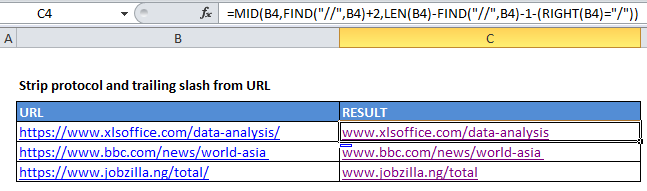
To remove the protocol (i.e. http://, ftp://, etc.) and trailing slash from a URL, you can use a formula based on the MID, FIND, and LEN functions.

Formula

=MID(url,FIND("//",url)+2,LEN(url)-FIND("//",url)-1-(RIGHT(url)="/"))
Explanation

In the example shown, the formula in C5 is:

=MID(B4,FIND("//",B4)+2,LEN(B4)-FIND("//",B4)-1-(RIGHT(B4)="/"))

How this formula works

The core of this formula is the MID function, which extracts the text in a URL starting with the character after “//”, and ending with the character before the trailing slash (“/”):

=MID(url,start,chars)

The url comes straight from B4.

The start is calculated using the FIND function like this:

FIND("//",B4)+2

FIND returns the position of the double slash (“//”) in the URL as a number, so we add 2 in order to start extracting at the next character.

Chars represents the number of characters to extract. We calculate this using the following expression:

LEN(B4)-FIND("//",B4)-1-(RIGHT(B4)="/")

The LEN function calculates the length of the original URL, from which we subtract the position of “//” minus 1. we also use a bit of Boolean logic to conditionally subtract 1 more character:

(RIGHT(B4)="/")

Here the RIGHT function extracts the last character which is compared to “/”. A result of TRUE is evaluated as 1, while a result of FALSE is evaluated as 0.

The Boolean logic is used to avoid additional conditional logic.

Post navigation

Previous Post:

DECIMAL function: Description, Usage, Syntax, Examples and Explanation

Next Post:

AVERAGE function: Description, Usage, Syntax, Examples and Explanation

Leave a Reply Cancel reply

Your email address will not be published. Required fields are marked *

Learn Basic Excel

Ribbon
Workbook
Worksheets
Format Cells
Find & Select
Sort & Filter
Templates
Print
Share
Protect
Keyboard Shortcuts

Categories

  • Charts
  • Data Analysis
  • Data Validation
  • Excel Functions
    • Cube Functions
    • Database Functions
    • Date and Time Functions
    • Engineering Functions
    • Financial Functions
    • Information Functions
    • Logical Functions
    • Lookup and Reference Functions
    • Math and Trig Functions
    • Statistical Functions
    • Text Functions
    • Web Functions
  • Excel VBA
  • Excel Video Tutorials
  • Formatting
  • Grouping
  • Others

Logical Functions

  • How to use Excel OR Function
  • How to use Excel XOR Function
  • Check multiple cells are equal in Excel
  • How to use IFS function in Excel
  • IFERROR function: Description, Usage, Syntax, Examples and Explanation

Date Time

  • Convert date to text in Excel
  • Get days, months, and years between dates in Excel
  • Calculate expiration date in Excel
  • Count birthdays by month in Excel
  • YEARFRAC function: Description, Usage, Syntax, Examples and Explanation

Grouping

  • Map text to numbers in Excel
  • How to randomly assign data to groups in Excel
  • Calculate conditional mode with criteria in Excel
  • Group arbitrary text values in Excel
  • Group times into 3 hour buckets in Excel

General

  • List worksheet index numbers in Excel
  • Excel Default Templates
  • How to generate random times at specific intervals in Excel
  • How to Delete Cells, Row and Rows in Excel
  • How to get amount with percentage in Excel
© 2026 xlsoffice . All Right Reserved. | Teal Smiles | Abbreviations And Their Meaning