
Skip to content
Free Excel Tutorials
  • Home
  • Excel For Beginners
  • Excel Intermediate
  • Advanced Excel For Experts

Data Analysis

  • How To Load Analysis ToolPak in Excel
  • Example of COUNTIFS with variable table column in Excel
  • Everything about Charts in Excel
  • Excel Line Chart
  • How to create dynamic reference table name in Excel

References

  • Two-column Lookup in Excel
  • LOOKUP function: Description, Usage, Syntax, Examples and Explanation
  • Perform case-sensitive Lookup in Excel
  • CHOOSE function: Description, Usage, Syntax, Examples and Explanation
  • Offset in Excel

Data Validations

  • Excel Data validation whole percentage only
  • Excel Data validation no punctuation
  • Excel Data validation date in next 30 days
  • Excel Data validation with conditional list
  • How To Create Drop-down List in Excel

How to calculate months between dates in Excel

by

To calculate months between two dates as a whole number, you can use the DATEDIF function.

Formula

=DATEDIF(start_date,end_date,"m")
Explanation

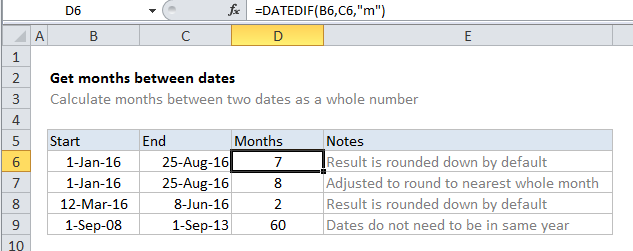
In the example shown, the formula in D6 is:

=DATEDIF(B6,C6,"m")

Note that the DATEDIF automatically rounds down. To round up to the nearest month, see below.

The mystery of DATEDIF

The DATEDIF function is a “compatibility” function that comes from Lotus 1-2-3. For reasons unknown, DATEDIF is only documented in Excel 2000, and will not appear as a suggested function in the formula bar. However, you can use DATEDIF in all Excel versions since that time, you just need to enter the function manually. Excel will not help you with function arguments.

How this formula works

DATEDIF takes 3 arguments: start date, end_date, and unit. In this case, we want months, so we supply “m” for unit.

DATEDIF automatically calculates and returns a number for months, rounded down.

Nearest whole month

If you want to calculate months to the nearest whole month, you can make a simple adjustment to the formula:

=DATEDIF(start_date,end_date+15,"m")

This ensures that end dates occurring in the 2nd half of the month are treated like dates in the following month, effectively rounding up the final result.

Post navigation

Previous Post:

DECIMAL function: Description, Usage, Syntax, Examples and Explanation

Next Post:

AVERAGE function: Description, Usage, Syntax, Examples and Explanation

Leave a Reply Cancel reply

Your email address will not be published. Required fields are marked *

Learn Basic Excel

Ribbon
Workbook
Worksheets
Format Cells
Find & Select
Sort & Filter
Templates
Print
Share
Protect
Keyboard Shortcuts

Categories

  • Charts
  • Data Analysis
  • Data Validation
  • Excel Functions
    • Cube Functions
    • Database Functions
    • Date and Time Functions
    • Engineering Functions
    • Financial Functions
    • Information Functions
    • Logical Functions
    • Lookup and Reference Functions
    • Math and Trig Functions
    • Statistical Functions
    • Text Functions
    • Web Functions
  • Excel VBA
  • Excel Video Tutorials
  • Formatting
  • Grouping
  • Others

Logical Functions

  • Nested IF function example in Excel
  • IF function: Description, Usage, Syntax, Examples and Explanation
  • Complete List of Excel Logical Functions, References and Examples
  • SWITCH function: Description, Usage, Syntax, Examples and Explanation
  • How to use Excel FALSE Function

Date Time

  • Count dates in current month in Excel
  • How to enter Today’s Date or Static Date and Time in Excel
  • WEEKNUM function: Description, Usage, Syntax, Examples and Explanation
  • Sum race time splits in Excel
  • Basic timesheet formula with breaks in Excel

Grouping

  • Group numbers at uneven intervals in Excel
  • If cell contains one of many things in Excel
  • Categorize text with keywords in Excel
  • How to randomly assign data to groups in Excel
  • How to randomly assign people to groups in Excel

General

  • Find, Trace and Correct Errors in Excel Formulas using ‘Formula Auditing’
  • Find Most Frequently Occurring Word in Excel Worksheet
  • How to fill cell ranges with random number from fixed set of options in Excel
  • How to calculate percent variance in Excel
  • Excel Operators
© 2025 xlsoffice . All Right Reserved. | Teal Smiles | Abbreviations And Their Meaning