
Skip to content
Free Excel Tutorials
  • Home
  • Excel For Beginners
  • Excel Intermediate
  • Advanced Excel For Experts

Data Analysis

  • Excel Frequency Function Example
  • How to Create One and Two Variable Data Tables in Excel
  • How To Sort One Column or Multiple Columns in Excel
  • Remove Duplicates Example in Excel
  • How to do a t-Test in Excel?

References

  • How to get relative column numbers in a range in Excel
  • Get nth match with INDEX / MATCH in Excel
  • How to use Excel LOOKUP Function
  • How to use Excel FORMULATEXT function
  • How to get last row in numeric data in Excel

Data Validations

  • Excel Data validation allow uppercase only
  • Excel Data validation with conditional list
  • Excel Data validation only dates between
  • Excel Data validation date in specific year
  • How To Create Drop-down List in Excel

How to multiple users can work on a Workbooks at same time

by

If you share a workbook, you can work with other people on the same workbook at the same time. The workbook should be saved to a network location where other people can open it. You can keep track of the changes other people make and accept or reject those changes.

To share a workbook, execute the following steps.

1. Open a workbook.
2. On the Review tab, in the Changes group, click Share Workbook.
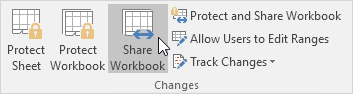
The Share Workbook dialog box appears.

3. On the Editing tab, click the check box and click OK.
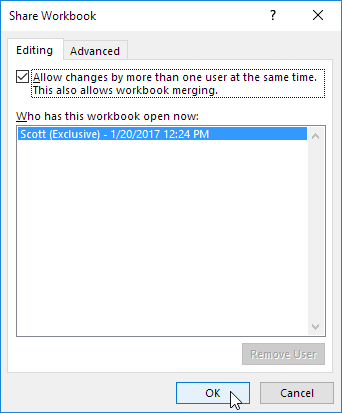
Excel saves the workbook. You can now work with other people on the same workbook at the same time. The screen above shows you who has the workbook open.

Highlight Changes

You can highlight the changes on screen other users has made.

1. On the Review tab, in the Changes group, click Track Changes.
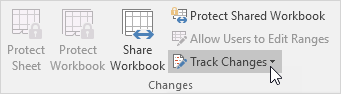
2. Click Highlight Changes.
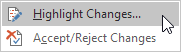
The Highlight Changes dialog box appears.

3. Click OK.
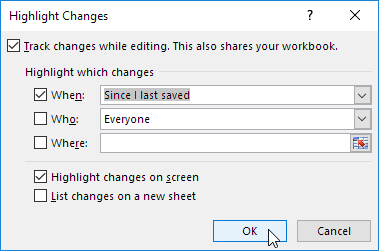
Excel highlights the changes on screen.
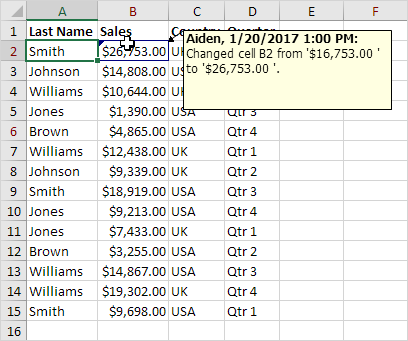
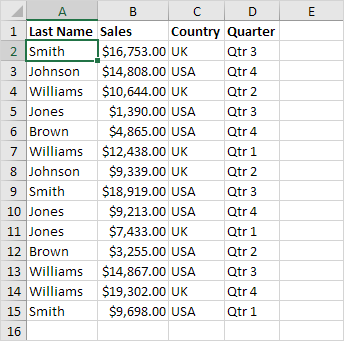
Apparently, Aiden has changed the Sales of Smith from $16,753.00 to $26,753.00.

Accept/Reject Changes

You can now accept or reject this change.

1. On the Review tab, in the Changes group, click Track Changes.

2. Click Accept/Reject Changes.

3. Click OK.
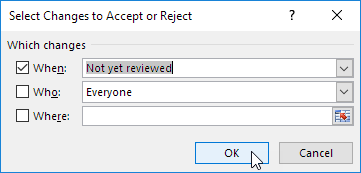
4. Click Accept to accept the change or Reject to reject the change.


Note: not all features are available in a shared workbook.

Post navigation

Previous Post:

TRUE function: Description, Usage, Syntax, Examples and Explanation

Next Post:

Excel Pie Chart

Leave a Reply Cancel reply

Your email address will not be published. Required fields are marked *

Learn Basic Excel

Ribbon
Workbook
Worksheets
Format Cells
Find & Select
Sort & Filter
Templates
Print
Share
Protect
Keyboard Shortcuts

Categories

  • Charts
  • Data Analysis
  • Data Validation
  • Excel Functions
    • Cube Functions
    • Database Functions
    • Date and Time Functions
    • Engineering Functions
    • Financial Functions
    • Information Functions
    • Logical Functions
    • Lookup and Reference Functions
    • Math and Trig Functions
    • Statistical Functions
    • Text Functions
    • Web Functions
  • Excel VBA
  • Excel Video Tutorials
  • Formatting
  • Grouping
  • Others

Logical Functions

  • IFERROR function: Description, Usage, Syntax, Examples and Explanation
  • Invoice status with nested if in Excel
  • Nested IF function example in Excel
  • How to use Excel XOR Function
  • IF function: Description, Usage, Syntax, Examples and Explanation

Date Time

  • TIMEVALUE function: Description, Usage, Syntax, Examples and Explanation
  • Get last weekday in month in Excel
  • Calculate series of dates by workdays in Excel
  • EDATE function: Description, Usage, Syntax, Examples and Explanation
  • Display Date is workday in Excel

Grouping

  • How to randomly assign people to groups in Excel
  • Group times into unequal buckets in Excel
  • Group numbers at uneven intervals in Excel
  • Group times into 3 hour buckets in Excel
  • Map text to numbers in Excel

General

  • How to set or clear a print area in Excel Worksheet
  • Find, Select, Replace and Go To Special in Excel
  • Freeze and Unfreeze Panes in Excel
  • 44 Practical Excel IF function Examples
  • How to fill cell ranges with random number from fixed set of options in Excel
© 2025 xlsoffice . All Right Reserved. | Teal Smiles | Abbreviations And Their Meaning