
Skip to content
Free Excel Tutorials
  • Home
  • Excel For Beginners
  • Excel Intermediate
  • Advanced Excel For Experts

Data Analysis

  • How To Filter Data in Excel
  • Randomize/ Shuffle List in Excel
  • Understanding Pivot Tables in Excel
  • Subtotal function in Excel
  • How to count table columns in Excel

References

  • Multi-criteria lookup and transpose in Excel
  • How to create dynamic named range with OFFSET in Excel
  • How to get first row number in range in Excel
  • How to get last row in numeric data in Excel
  • Basic INDEX MATCH approximate in Excel

Data Validations

  • Excel Data validation no punctuation
  • Excel Data validation unique values only
  • Data validation must not exist in list
  • Prevent invalid data entering in specific cells
  • Excel Data validation date in specific year

Advanced Find Features in Excel

by

This chapter teaches how to incorporate special characters with find option.

A question mark (?) matches exactly one character. For example, F?rrari will find Ferrari, Forrari, Farrari, etc. An asterisk (*) matches a series of zero or more characters. For example, F*rrari will find Ferrari, Foorrari, Faaaaaarrari, etc.

To access some more advanced find features in Excel, execute the following steps.

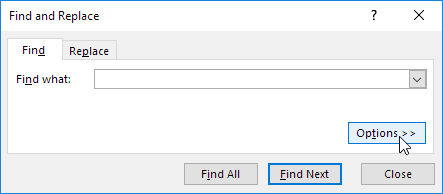
1. Click on Options in the ‘Find and Replace’ dialog box.
2. Type the text you want to find. For example, type Ferrari.
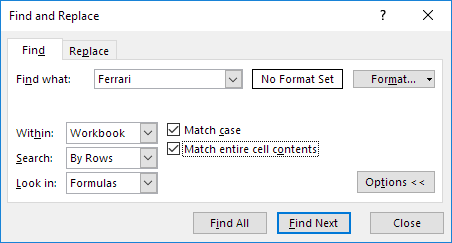
3. Select Workbook from the Within drop-down list to find occurrences across all the worksheets.

4. Checking “Match case” will make your search case-specific. For example, it will only find Ferrari and not ferrari.

5. Checking “Match entire cell contents’ will only find cells which contain exactly “Ferrari”. For example, cells that contain “Car Ferrari”, “Ferrarii” or even “Ferrari ” will not be found.


Post navigation

Previous Post:

COSH function: Description, Usage, Syntax, Examples and Explanation

Next Post:

Excel Data validation require unique number

Leave a Reply Cancel reply

Your email address will not be published. Required fields are marked *

Learn Basic Excel

Ribbon
Workbook
Worksheets
Format Cells
Find & Select
Sort & Filter
Templates
Print
Share
Protect
Keyboard Shortcuts

Categories

  • Charts
  • Data Analysis
  • Data Validation
  • Excel Functions
    • Cube Functions
    • Database Functions
    • Date and Time Functions
    • Engineering Functions
    • Financial Functions
    • Information Functions
    • Logical Functions
    • Lookup and Reference Functions
    • Math and Trig Functions
    • Statistical Functions
    • Text Functions
    • Web Functions
  • Excel VBA
  • Excel Video Tutorials
  • Formatting
  • Grouping
  • Others

Logical Functions

  • How to use IFS function in Excel
  • IF with boolean logic in Excel
  • IF, AND, OR and NOT Functions Examples in Excel
  • Invoice status with nested if in Excel
  • IFERROR function: Description, Usage, Syntax, Examples and Explanation

Date Time

  • Get work hours between dates custom schedule in Excel
  • Calculate date overlap in days in Excel
  • Get month from date in Excel
  • Convert date to text in Excel
  • How to calculate project start date based on end date in Excel

Grouping

  • Categorize text with keywords in Excel
  • How to randomly assign people to groups in Excel
  • Group numbers at uneven intervals in Excel
  • Map text to numbers in Excel
  • Running count group by n size in Excel

General

  • Hide and Unhide Columns or Rows in Excel
  • How to calculate percent sold in Excel
  • Check if multiple cells have same value in Excel
  • Check if multiple cells have same value with case sensitive in Excel
  • Excel Autofill Cell Ranges, Copy, Paste
© 2025 xlsoffice . All Right Reserved. | Teal Smiles | Abbreviations And Their Meaning