
Skip to content
Free Excel Tutorials
  • Home
  • Excel For Beginners
  • Excel Intermediate
  • Advanced Excel For Experts

Data Analysis

  • How to Create Column Chart in Excel
  • How to create running total in an Excel Table
  • How to create Checklist in Excel
  • Conditional Formatting Rules in Excel
  • Excel Pie Chart

References

  • How to get relative row numbers in a range in Excel
  • Count rows that contain specific values in Excel
  • Basic INDEX MATCH approximate in Excel
  • How to get last row in text data in Excel
  • To count total rows in a range in Excel

Data Validations

  • Prevent invalid data entering in specific cells
  • Excel Data validation date in specific year
  • Excel Data validation exists in list
  • Data validation must not exist in list
  • Excel Data validation allow weekday only

How to extract nth word from text string in excel

by

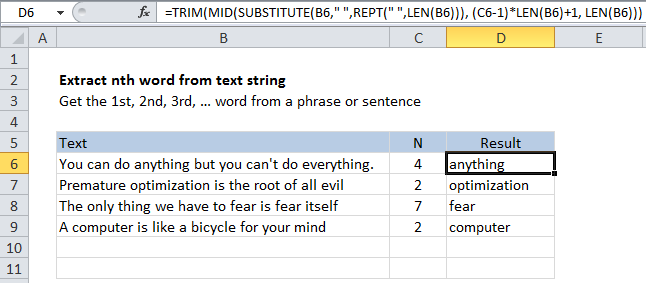
If you need to get the nth word in a text string (i.e. a sentence, phrase, or paragraph) you can so with a clever (and intimidating) formula that combines 5 Excel functions: MID, SUBSTITUTE, TRIM,  REPT, and LEN.

 Formula

=TRIM(MID(SUBSTITUTE(A1," ",REPT(" ",LEN(A1))), (N-1)*LEN(A1)+1, LEN(A1)))
Explanation

How this formula works

At the core, this formula takes a text string with spaces, and “floods” it with additional spaces by replacing each space with a number of spaces using SUBSTITUTE and REPT. The number of spaces used is based on the overall length of the original text.

You can think of the result at this point as “islands” of words floating in a sea of space:)

Then the formula uses the MID function to extract the desired word. The starting point is worked out with:

(N-1)*LEN(A1)+1

And the total characters extracted is equal to the length of the full text string.

At this point, we have the word you want, surrounded by spaces. Finally, the TRIM function slices off all space characters and returns just the word.

I really like this formula, because it shows off what you can accomplish with some creative thinking.

Text to Columns

Don’t forget that Excel has a built-in Text to Columns feature that can split text according to the delimiter of your choice. If you just need to get the 3rd word from a lot of text strings, the formula may be more convenient (and dynamic), but Text to Columns is still useful in many situations.

Post navigation

Next Post:

Create One-dimensional and Two-dimensional Array

Leave a Reply Cancel reply

Your email address will not be published. Required fields are marked *

Learn Basic Excel

Ribbon
Workbook
Worksheets
Format Cells
Find & Select
Sort & Filter
Templates
Print
Share
Protect
Keyboard Shortcuts

Categories

  • Charts
  • Data Analysis
  • Data Validation
  • Excel Functions
    • Cube Functions
    • Database Functions
    • Date and Time Functions
    • Engineering Functions
    • Financial Functions
    • Information Functions
    • Logical Functions
    • Lookup and Reference Functions
    • Math and Trig Functions
    • Statistical Functions
    • Text Functions
    • Web Functions
  • Excel VBA
  • Excel Video Tutorials
  • Formatting
  • Grouping
  • Others

Logical Functions

  • IFS function: Description, Usage, Syntax, Examples and Explanation
  • Nested IF function example in Excel
  • IF with wildcards in Excel
  • OR function: Description, Usage, Syntax, Examples and Explanation
  • How to use Excel XOR Function

Date Time

  • Get fiscal year from date in Excel
  • Display Days until expiration date in Excel
  • List holidays between two dates in Excel
  • Get first day of previous month in Excel
  • Get week number from date in Excel

Grouping

  • Group times into unequal buckets in Excel
  • Group arbitrary text values in Excel
  • Categorize text with keywords in Excel
  • Group times into 3 hour buckets in Excel
  • Map inputs to arbitrary values in Excel

General

  • How to get original number from percent change in Excel
  • How to create dynamic named range with INDEX in Excel
  • Freeze and Unfreeze Panes in Excel
  • Basic numeric sort formula in Excel
  • Create dynamic workbook reference to another workbook in Excel
© 2025 xlsoffice . All Right Reserved. | Teal Smiles | Abbreviations And Their Meaning